Thursday, October 26, 2017

Chatter User Licenses

All standard Salesforce licenses allow free Chatter access for everyone in your organization. Salesforce also offers Chatter-specific licenses: Chatter External, Chatter Free, and Chatter Only (also known as Chatter Plus). The Chatter Only license is available for purchase only by existing Chatter Plus customers. For new customers, the Employee Apps Starter license is a step up from Chatter Only, giving your users access to a more robust set of features.

Available in: Salesforce Classic and Lightning Experience
Chatter External and Chatter Free licenses are available in: Group, Professional, Enterprise, Performance, Unlimited, Contact Manager, and Developer Editions
Chatter Only (also known as Chatter Plus) licenses are available in: Professional, Enterprise Unlimited, and Performance Editions
Employee Apps Starter licenses are available in: Enterprise, Performance, Unlimited, and Developereditions

Chatter External

This license is for users who are outside of your company’s email domain. These external users, also called customers, can be invited to Chatter groups that allow customers. Customers can access information and interact with users only in the groups they’re invited to. They have no access to Chatter objects or data.

Chatter Free

The Chatter Free license is for users who don’t have Salesforce licenses but must have access to Chatter. These users can access standard Chatter items such as people, profiles, groups, and files, but they can’t access any Salesforce objects or data. Chatter Free users can also be Chatter moderators.
Chatter Free users don’t see tabs like other Salesforce users. Chatter Free users access feeds, people, groups, and files using the App Launcher in Lightning Experience. In Salesforce Classic, users access these features from links in the page sidebar.
Salesforce administrators can upgrade a Chatter Free license to a standard Salesforce or Employee Apps Starter license at any time. You can’t convert a standard Salesforce, Employee Apps Starter, or Chatter Only license to a Chatter Free license.

Chatter Only (Chatter Plus)

The Chatter Only license is also known as the Chatter Plus license. It’s available only to existing Chatter Plus customers. The Chatter Plus license is for users who don’t have Salesforce licenses but must have access to Chatter and some additional Salesforce objects. Chatter Plus users can be Chatter moderators and have access to standard Chatter people, profiles, groups, and files pages. They can also
  • View Salesforce accounts and contacts
  • Use Salesforce CRM Content, Ideas, and Answers
  • Access dashboards and reports
  • Use and approve workflows
  • Use the calendar to create and track activities
  • View and modify up to 10 custom objects
  • Add records to groups
If you’re an existing Chatter Plus customer, you can buy more Chatter Plus licenses, or you can upgrade to Employee Apps Starter.
By default, the tabs for standard Salesforce objects are hidden from Chatter Plus users. Expose these tabs if you want to make them available to Chatter Plus users. For more information on Chatter Plus users, see Chatter Plus Frequently Asked Questions

Employee Apps Starter (for Partner and Customer Communities)

The Employee Apps Starter license is for users in communities who must have access to Chatter and a wide variety of Salesforce objects. Employee Apps Starter users can be Chatter moderators and have access to standard Chatter people, profiles, groups, and files pages. They can also interact with
  • Accounts
  • Assets
  • Cases
  • Contacts
  • Dashboards (read only)
  • Documents
  • External Objects (Salesforce Connect)
  • Events and Calendars
  • Ideas
  • List Views
  • Notes and Attachments
  • Reports
  • Tasks
  • Work Orders
  • Work Order Line Items
Besides working with these objects, Employee Apps Starter users have access to these Salesforce features, capabilities, and custom objects
  • 20-MB data storage per user license, and 2-GB file storage per user license
  • 1000 API calls per day per member for Enterprise Edition orgs and 5000 API calls per day per member for Unlimited Edition orgs
  • Direct Messages
  • 10 custom objects per license (custom objects in managed packages don’t count towards this limit)
  • Knowledge (read only)
  • Roles and Advanced Sharing
  • Salesforce1 Mobile App
  • Send Email
  • Thanks Badges
  • Tokens
  • Workflow Approvals
Note
For a detailed look at the benefits associated with an Employee Apps Starter license, see Communities User Licenses.

Chatter License Overview

This table shows the list of features that are available for Chatter External, Chatter Free, Chatter Only, and Employee Apps Starter licenses.
FeatureChatter External
(Access limited to items and people in the groups customers are invited to)
Chatter FreeChatter Only
(a.k.a. Chatter Plus)
Employee Apps Starter
Chatter Desktop clientcheck icon indicating truecheck icon indicating truecheck icon indicating truecheck icon indicating true
Use the Salesforce1 mobile app
(Downloadable apps require the “API Enabled” profile permission)
check icon indicating true
Downloadable app users can’t access Groups or People list views.
check icon indicating truecheck icon indicating truecheck icon indicating true
Feedscheck icon indicating truecheck icon indicating truecheck icon indicating truecheck icon indicating true
File sharingcheck icon indicating truecheck icon indicating truecheck icon indicating truecheck icon indicating true
Files Connectcheck icon indicating truecheck icon indicating true
Groupscheck icon indicating truecheck icon indicating truecheck icon indicating truecheck icon indicating true
Invitations to join groupscheck icon indicating true
Only customers who are also group managers can invite Chatter users from groups they have access to or people outside Chatter.
check icon indicating truecheck icon indicating truecheck icon indicating true
Profilescheck icon indicating truecheck icon indicating truecheck icon indicating truecheck icon indicating true
Topics and hash tagscheck icon indicating truecheck icon indicating truecheck icon indicating true
Private messagescheck icon indicating truecheck icon indicating truecheck icon indicating truecheck icon indicating true (Direct Messages)
Global searchcheck icon indicating true
Search results include only those items that customers have access to via groups.
check icon indicating truecheck icon indicating truecheck icon indicating true
Custom objectscheck icon indicating true
Up to 10 custom objects
check icon indicating true
Accounts and contactscheck icon indicating true
Read only
check icon indicating true
Calendar and eventscheck icon indicating truecheck icon indicating true
Content librarycheck icon indicating truecheck icon indicating true
Ideas and answerscheck icon indicating truecheck icon indicating true
Reports and dashboardscheck icon indicating truecheck icon indicating true (access to dashboards is read-only)
Tasks and activitiescheck icon indicating truecheck icon indicating true
Using and approving workflowscheck icon indicating truecheck icon indicating true

Wednesday, October 25, 2017

Schedule a Report for Refresh

Schedule a report to run daily, weekly, or monthly. An HTML version of the report can be sent by email to users in your organization.

Available in: Salesforce Classic and Lightning Experience
Available in: Professional, Enterprise, Performance, Unlimited, and Developer Editions
Available in: Enhanced Folder Sharing and Legacy Folder Sharing
User Permissions Needed
To create, edit, and delete reports:
Legacy Folder Sharing
Schedule Reports
Enhanced Folder Sharing
Schedule Reports
  1. On the Reports tab, click a report name.
  2. Click Schedule Future Runs from the Run Report drop-down menu.
    If you’re creating a new report, you are asked to save the report in a folder before scheduling. If the report folder is shared with a group, you can schedule the report only for the entire group. To schedule the report for an individual group member, share the report folder with that member.
  3. On the Schedule Report page, specify a running user who has access to the folder where the report is stored.
    The access level of the running user determines what other users, including portal users, see when they receive the scheduled report run results. This means that not all users can see every field, and the running user can see fields that others may not be able to see. When it’s sent, the report indicates which fields the running user can see that can’t be viewed by others. You need the “View All Data” permission to specify a running user other than yourself.

    Note
    If the running user becomes inactive, the report doesn’t run. Salesforce sends an email notification to either activate the user, delete the report schedule, or change the running user to an active one. Salesforce sends the notification to users with the “Manage Users,” “Modify All Data,” and “Manage Billing” permissions. If no user has all these user permissions, Salesforce sends the notification to users with the “Manage Users” and “Modify All Data” user permissions.
  4. Select an email setting.
    SelectTo
    To meSend the report to your email address specified on your user profile.
    To me and/or othersEmail the report to additional users.
    You can send reports only to email addresses included on Salesforce user records. When portal users receive emailed reports, they see the same data as the running user set in the report schedule. If you have information you’d rather not share, schedule the report to run with a portal user as the running user.
    Note
    Portal users receive report and dashboard refresh email notifications when the Allow Reports and Dashboards to Be Sent to Portal Users option is enabled.
  5. Set the frequency, duration, and time for running the report:
    • In the Frequency field, select Daily, Weekly, or Monthly and then refine the frequency criteria.
    • Using the Start and End fields, specify the dates during which you want to schedule the report. To enter the current date, click the link showing the date.
    • Next to Preferred Start Time, click Find available options to choose a start time.
    Your preferred start time might not be available if other users have already selected that time to schedule a report.
  6. Click Save Report Schedule. You can choose:
    ChooseTo
    Save report modifications with this scheduleSave both the report schedule and changes you made to the report.
    Discard report modificationsSave the schedule only. Changes you made to the report are discarded.
Report recipients can click the report name in emailed reports to log in to Salesforce and view the report directly.

Example

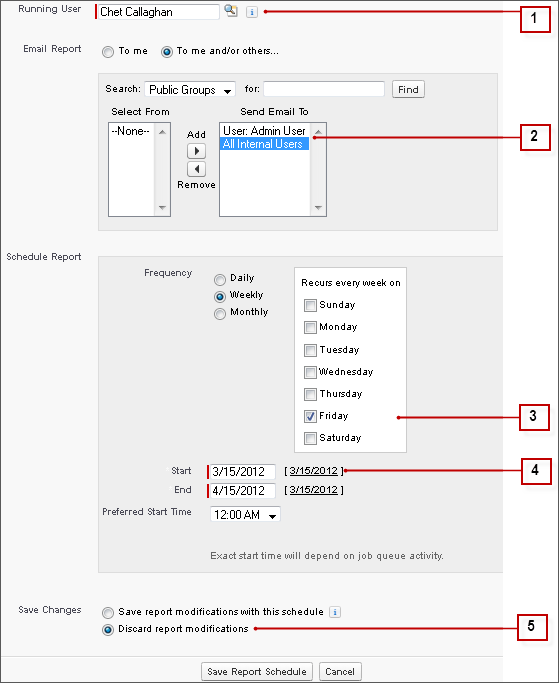
A report is scheduled to run every Friday at midnight, and its results are emailed to a selected group and user.
Report run schedule
  1. All users, including portal users, viewing the scheduled report see the report data that Sales Director Chet’s access level allows.
  2. Report run results are set to be emailed to a public user group called All Internal Users and the admin user. You can only send emails to users and groups with access to the report folders. The Search drop-down displays all available categories based on your search criteria in the Running User field.
  3. The report is scheduled to run every Friday.
  4. The report run is scheduled to start on the current date.
  5. The schedule is saved without saving prior changes made to the report.

Tuesday, October 24, 2017

Use images in Formula Fields

Description
Create a Formula Field to display images based on the value of another field in an Object.
For example, use a Formula Field to highlight the status of an Opportunity, Lead, Case Age, or the dollar amount in a Contract.
Resolution


Steps to create a Formula Field that displays an image in Salesforce Classic


1. Create a public folder to hold your image files.
1. Click the Documents tab.
2. Click Create New Folder.
3. Enter the folder name (for example, "Public Images").
4. Give users "Read-Only" access to the folder and make it accessible to all users.
 
2. Upload your image file to your Documents storage area.
1. Click the Documents tab.
2. Click New.
3. Enter the document name to be displayed on the browser.
4. From the "Folder" picklist, select the folder you created in step 1.
5. Click Browse to look for and select the file to upload.
6. Click Save.
 
3. Repeat step 2 to upload all your image files.
 
4. Create a new "Text" type Formula Field.
1. Go to Setup | Customize | <Object> -- Select the Object you are going to customize (Accounts, Case, Opportunity).
2. Click Fields.
3. Under "Custom Fields," click New.
4. Select Formula.
5. Click Next.
6. Enter your custom field name, then select Text from the "Type" picklist.
7. Click Next.
8. In the "Enter Formula" screen, click Advanced Formula.
 
5. Obtain the URL to the files you uploaded
1. Click the Documents tab.
2. From the "Folder" picklist, select the folder you created in step 1.
3. Click Go.
4. Click View next to the name of the file you want to use.
- A new browser window or browser tab opens.
5. In the browser's address bar, select and copy the URL.
 
6. Enter your image URL into your Formula Field using the "IMAGE" function.

1. In the text area, enter your formula using IMAGE to retrieve the image file you uploaded in step 2. 
2. Paste the image document URL into the 'image_url' portion of the IMAGE function.

Notes
  • Don't include the Salesforce domain ("https://www.salesforce.com") in your URL.
  • URLs must be enclosed in double-quotes, for example: "/servlet/servlet.FileDownload?file=01570000000Q6El"

7. Repeat step 5 and step 6 for until each of your image URLs have been added to the Formula Field.
 
8. Grant the appropriate Field-Level Security to your Formula Field.
 
9. Include the Formula Field in all the relevant Page Layouts.
 

Example Formula Fields

Example #1

This example displays a GIF image of a green square if the amount of an opportunity is greater than 100, a yellow square if it's under 51 and 99, and a red square if it's less or equal to 50.
IF( Amount > 100, IMAGE("/servlet/servlet.FileDownload?file=01570000000Q6El", "Green"),
IF ( Amount > 50, IMAGE("/servlet/servlet.FileDownload?file=01570000000Q6Ef", "Yellow"),
IMAGE("/servlet/servlet.FileDownload?file=01570000000Q6Ep", "Red")))

IMPORTANT: Although percentage fields appear to have whole number values, they are decimals. For example, 50% in the opportunity probability field is entered as 0.5, not 50. So the formula for a percent field should look like this (using probability field as example):
IF ( Probability > 0.50, IMAGE("/servlet/servlet.FileDownload?file=01570000000Q6Ef", "Yellow")
 

Example #2 

This example displays the JPG image of a flower regardless of the value in any field.
IMAGE("http://images.odeo.com/1/8/4/Zencast.jpg", "Flower", 300, 300)

Monday, October 23, 2017

Dynamic Approval Process

Approval processes route a record to one or more approvers, specifying the steps necessary for a record to be approved, and who must approve it at each step.
In a typical approval process (what you're calling a "static" approval process), the approvers at each step are explicitly specified in each step approval process. You have a little flexibility -- for example, you can have the submitter choose the approver manually, or you can automatically assign it to the submitter's or record owner's manager, or to a queue -- but there's a limited pool of people who can be approvers.
Dynamic approval routing allows you to specify the approvers for each record using User lookup fields on the record requiring approval. The fields are populated using Apex, using data from a special custom object (the "approval matrix") that contains all the information needed to route the record. The approval process then uses the values in the lookup field, rather than the limited pool of users available in the so-called static process. This provides more flexibility: you could route to different people based on region or some other criteria related to the record, rather than having to write multiple static approval processes in order to perform the same functionality.
The steps for dynamic approval routing are:
  1. Create lookup fields on the object being approved.
  2. Create a custom object that will be used as an approval matrix.
  3. Populate the approval matrix.
  4. Create Apex code to fill in the lookup fields on the record, from the approval matrix.
  5. Create or update an approval process to utilize the new lookup fields.
For example: suppose you have a position object and there are 3 levels of approvers. You need to route the record to different approvers based on the department and pay grade. You would:
  1. Add custom lookup fields (to User) on the Position object, called Approver 1, Approver 2, and Approver 3.
  2. Create an approval matrix object that stores all the fields used in routing: pay grade, department, and lookup fields to the User object for each approver.
  3. Create the approval matrix records. For position, one might route records with the department of Engineering to high-level Engineering managers as approvers, whereas the department of Sales would have high-level Sales managers as the approvers.
  4. Use an Apex trigger to populate the lookup fields on the Position record when the record is created, based on the values in the approval matrix.
  5. On the approval process, in the approval steps, set the Assigned Approver to the appropriate lookup field on the record (Approver 1, Approver 2, and Approver 3).
As you can see this is more complex and requires Apex, but it can be powerful if you have complex and changing routing requirements. One other point to note is that while users require Customize Application in order to customize an approval process, the approval matrix object is just a regular custom object with the same CRUD and sharing possibilities as any other object, so you could allow non-admins to change the approvers.
Additional documentation/examples that may be helpful: - Approval Process Overview (Salesforce Help & Training) - Using a Matrix-Based Dynamic Approval Process (Force.com Cookbook) - Force.com Dynamic Approval Routing (Salesforce Developers)
Using a Matrix-Based Dynamic Approval Process

Problem

You want to be able to create a single criteria-based approval process to route opportunity discount approval requests to designated approvers, based on the requester's region and the opportunity's account type.

Solution

The Dynamic Approval Routing application, available for free on AppExchange, provides a sample solution that automates an opportunity discount approval process based on region and account type, and routes opportunities through three required levels of approval. The Dynamic Approval Routing application comes packaged with the necessary custom object, validation rule, Apex class, and Apex triggers and tests. The package also comes with documentation on how to customize the application to fit your needs.
To take advantage of dynamic approvals, do the following:
  1. Go to AppExchange and install the Dynamic Approval Routing application.
    For Developer Edition organizations, or any organizations with fewer than three users, select the Ignore Apex test failures checkbox before installing the package. Otherwise, the Apex test fails and the installation does not succeed.
  2. Once installation is complete, click All Tabs, then click Customize My Tabs. Add the Approval Routing Rules tab to the Selected Tabs list.
  3. Customize the following fields' picklist values to match your organization.
    • Owner Region—Custom picklist field on the User object to model the opportunity owner’s region. Set the region for all opportunity owners.
    • Account Type—Custom picklist field on the Opportunity object to model the account type associated with the opportunity. Set the account type for all opportunities.
    You may have to enable the Owner Region and Account Type fields in the Page Layouts for Users and Opportunities, respectively.
  4. Create an Approval Routing Rule for each combination of region and account type.
    1. Select the Account Type and Owner Region for the rule. The Routing Key, a composite key based on the Account Type and Owner Region fields, is created automatically.
    2. For each rule, select approvers for Level1, Level2, and Level3, the custom user lookup fields used to model the levels of authorization. Approvers for all opportunities are assigned according to the submitter's region and the opportunity's type.
  5. Create the approval process for opportunity discounts.
    1. Click Setup | Create | Workflow & Approvals | Approval Processes.
    2. From the Manage Approval Processes For drop-down list, select the object type for this approval process. For this example, select Opportunity.
    3. Click Create New Approval Process and select Use Standard Setup Wizard.
    4. Enter the Process Name (Opportunity Discount Approval) and Description for your new approval process, then click Next.
    5. From the Use this approval process if the following drop-down list, select criteria are met.
    6. Define the rule to fire when Closed equals False.
    7. Click Next.
    8. Leave the Next Automated Approver Determined By set at None, but select the Administrators OR the currently assigned approver can edit records during the approval process option, then click Next.
    9. Leave the Approval Assignment Email Template blank, then click Next.
    10. Select the fields you want to display on the approval page, click the Display approval history information... option, then click Next.
    11. By default, only the record owner—Opportunity Owner, in this example—is listed under Allowed Submitters. Leave this setting.
    12. Click Save.
      The approval process described here is a generic one. You can create any approval process you want to use the Approval Routing Rules you defined in the Dynamic Approval Routing custom object.
  6. Create the three approval steps to correspond to the Level1, Level2, and Level3 approver fields defined in the Approval Routing Rule.
    1. From the Approval Process Detail page, click New Approval Step.
    2. Name the steps Level 1 Approval, Level 2 Approval, Level 3 Approval.
    3. For the step criteria, select All records should enter this step.
    4. Select Automatically assign to approver(s) and choose Related User.
    5. Find and select Level1, Level2, and Level3 for your three steps, respectively.
    6. Click Save.
Once you become more familiar with how these routing rules work, you can design data-driven approval routing for all approval processes involving multiple routing criteria.

Saturday, October 21, 2017

Salesforce Maintenance Exams - Platform Developer 1

Salesforce Certified Platform Developer–1 Spring ’17 Release Exam Q & A

1. Which component type will display the details of the parent Account from a custom Lightning record page for the Contact object?


Answer:C
  • A.Filter list component
  • B.Parent object component
  • C.Hierarchy component
  • D.Related record component


2. Which three types of content can shortcuts be created for using Favorites?
Choose 3 

Answers:A,C,E

  • A.Dashboards
  • B.Custom tabs
  • C.Chatter groups
  • D.Global actions
  • E.Record home pages


3. A Platform Developer wants to reference an image included in the Salesforce Lightning Design System from a Visualforce page.
Which two references should be included in the page markup?
Choose 2 

Answers: B,C


  • A.$SLDS
  • B.<apex:slds>
  • C.$Asset
  • D.<force:slds>


Explanation:


Use the Lightning Design System in Visualforce Pages
Use the element to incorporate the Lightning Design System in your Visualforce pages and align them with the styling of Lightning Experience. This component is a streamlined alternative to uploading the Lightning Design System as a static resource and using it in your Visualforce pages. Because you don’t have to upload the Lightning Design System as a static resource, you can keep the syntax of your page simple and stay under the 250-MB static resource limit. To use Lightning Design System stylesheets in your Visualforce page, add anywhere in your page markup. In general, the Lightning Design System is already scoped. However, if you set applyBodyTag or applyHtmlTag to false, you must include the scoping class slds-scope. Within the scoping class, your markup can reference Lightning Design System styles and assets. To reference assets in the Lightning Design System, such as SVG icons and images, use the URLFOR() formula function and the $Asset global variable.
Reference Lightning Design System Assets with the $Asset Global Variable Use the $Asset global variable to access images, sprites, and other assets that are part of the Lightning Design System. Use it in Visualforce pages that also use the component. Use $Asset instead of $Resource. The variable takes dot notation and SLDS. For example, this markup references a JPG avatar in the Lightning Design System.

4. Which feature enables creating, updating and deleting records in other Salesforce orgs?

Answers:D


  • A.Lightning-to-Lightning Connector
  • B.Database.WriteableObject Interface
  • C.Apex Triggers for Writeable External Objects
  • D.Salesforce Connect Cross-Org Adapter 

Explanation:

Work Seamlessly Across All Your Salesforce Orgs
—Cross-Org Connector with Write Support USER PERMISSIONS
To create and edit external data sources:
“Customize Application” To edit permission sets and user profiles:
“Manage Profiles and Permission Sets” Writable external objects are available with the cross-org adapter for Salesforce Connect.
Now your users and developers can create, update, and delete records that are stored in connected Salesforce orgs. In addition, lookup search is available for external lookup relationship fields whose parent external objects are associated with the cross-org adapter for Salesforce Connect. These changes apply to Lightning Experience, Salesforce Classic, and all versions of the Salesforce1 mobile app.

To enable writable external objects: When you define the external data source, select Writable External Objects.
When you enable user access to external objects, select the following object permissions as needed.
Read—Always required.
Create—Required to create external object records
Edit—Required to create or edit external object records
Delete—Required to delete external object records
Enable user access to the fields on the external objects

5. Which three actions can be taken from the Global Actions Menu?
Choose 3 

Answers: C,D,E


  • A.Execute anonymous blocks of Apex code.
  • B.Post to a Chatter feed.
  • C.Launch a custom Canvas App.
  • D.Launch a custom Lightning Component.
  • E.Launch a custom Visualforce Page.

Explanation:

Create records, log calls, take notes, and launch canvas, Visualforce, and Lightning component actions from anywhere in Lightning Experience. The Global Actions menu ( ) now displays nearly all global actions from the Salesforce1 and Lightning Experience Actions section of the global publisher layout. This change applies to Lightning Experience only.
You might have noticed that we said “nearly all.” The Global Actions menu doesn’t support the standard Chatter actions Post, File, Poll, Link, Question, and Thanks.

6. Which two options are available to display detailed information about the status of an Apex batch job? Choose 2 

Answers: B,D


  • A.Submitted by user
  • B.Submitted date
  • C.Heap size
  • D.Elapsed time


Explanation:

Monitor the Status of Apex Batch Jobs:

Get more information about the status of Apex batch jobs. For a particular batch class, you can get information about parent jobs, such as submitted and completion dates and the number of batches processed or failed. This change applies to both Lightning Experience and Salesforce Classic.
From Setup, enter Apex in the Quick Find box, and select Apex Jobs to view all Apex jobs for your org.
Click the link at the top of the page to go to the new batch jobs page and see all Apex batch classes.
Click More Info on a particular batch class to show the parent jobs of the batch class, including information about:

Status
Submitted and completion dates
Elapsed time for each batch
Number of processed batches
Number of failed batches

7. Custom Lightning Record Pages can be assigned to which three items?
Choose 3 

Answers:A,C,E


  • A.Profiles
  • B.Public groups
  • C.Apps
  • D.Roles
  • E.Record types

Explanation:


Now we can customize your users’ experience even more granular by creating custom record pages and assigning them by app, record type, and user profile. Give your sales managers a different view of opportunities than your sales reps. Configure nonprofit account pages differently than standard business account pages. We also revamped the activation process. You can now activate a page as the org default, app default, or for the most granularity, assign it to a combination of apps, record types, and profiles all in one place

Lightning Inter-Component Communication Patterns

Lightning Inter-Component Communication Patterns If you’re comfortable with how a Lightning Component works and want to build producti...